 Step by Step Guide
 How to back up your phone before you lose it or trade it in
A practical walkthrough for saving photos, messages, contacts, and two-factor codes on Android and iPhone, and confirming the backup actually works before you switch devices.
Updated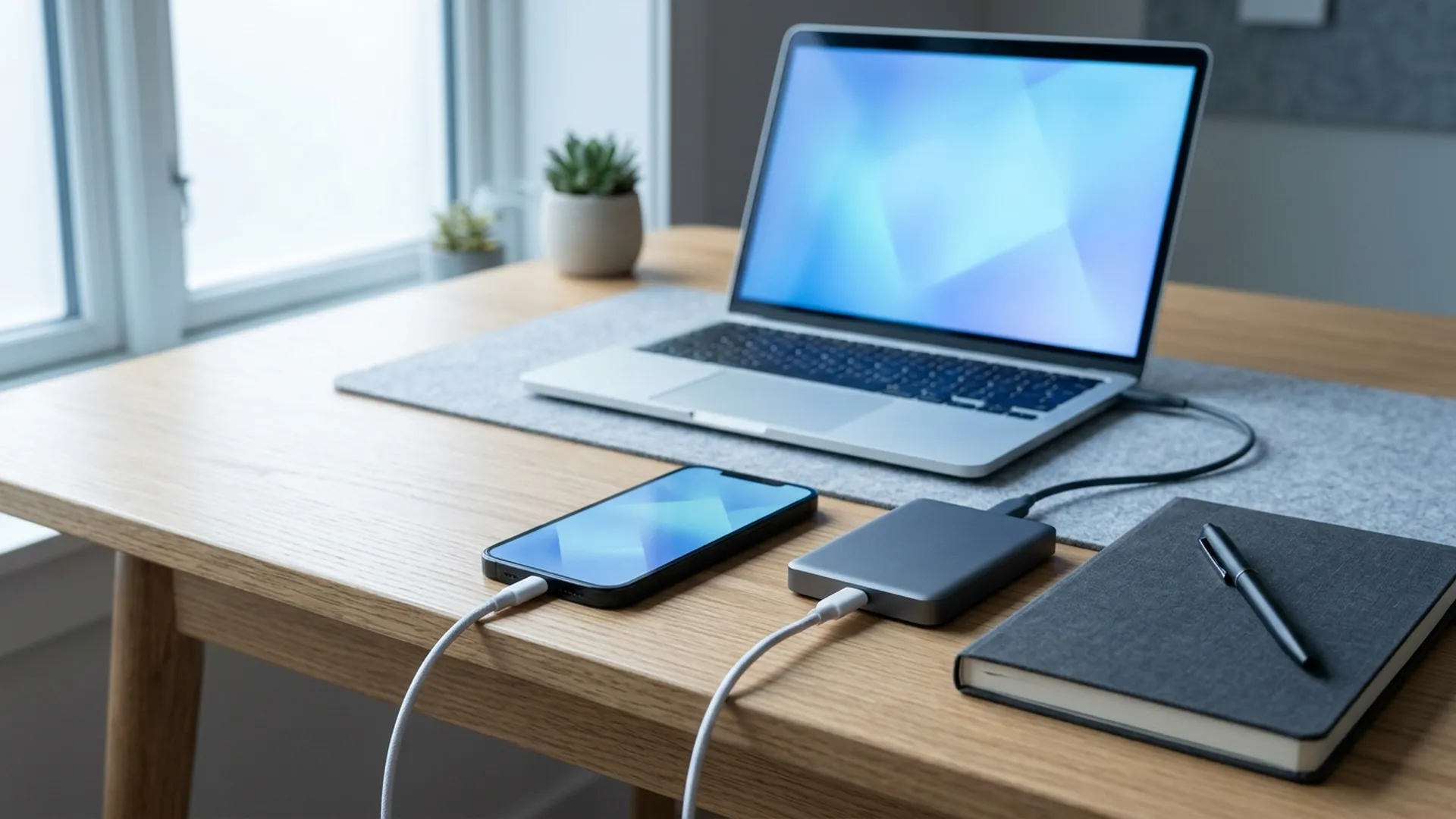
Most people only find out their phone backup was broken on the day they need it: stolen device, shattered screen, or that innocent upgrade that wipes everything halfway through. Years of photos, important conversations, work contacts, and the two-factor codes that unlock your bank and email — all of it can vanish in one afternoon.
This guide covers both Android and iPhone and focuses on the four things that actually matter: photos and videos, messages (especially WhatsApp), contacts, and your authenticator app. At the end, you will learn how to test whether the backup exists for real, because the friendly “backup on” label fools a lot of people.
Do the backup before any decision about the old phone: before selling it, before gifting it, before sending it in for repair, and before factory resetting. Rushed backups made with a wiped device sitting next to you almost always go wrong.
Before you start
Set aside a quiet hour at home with the phone plugged in and Wi-Fi reachable. Cellular data works, but a full backup can eat your whole plan and stall halfway.
- Phone above 50% battery (or on the charger)
- Google account (Android) or Apple ID (iPhone) with the password you actually remember
- Free space in the cloud, or a computer with disk room
- Original USB cable if you plan on doing a local backup
- WhatsApp, email, and bank passwords written down somewhere that isn’t the phone
Figure out what you actually need to save
Before mashing “back up now,” stop and think about what would hurt to lose. The list is usually shorter than it feels: photos and videos, contacts, WhatsApp chats, notes, and your two-factor authenticator. Apps you can reinstall; games often keep progress in your account; important documents are usually in your email already.
Open the gallery and look at how many GB of photos you have. Then open the phone’s settings and find the storage section — it shows how much space each category uses. That number decides whether the free cloud tier is enough or whether you also need a local copy.
Turn on the cloud backup for the main account
On Android, open the system settings and look for the Google account and backup section. Turn on device backup and confirm what is included: contacts, calendar, settings, call history, and SMS. Each manufacturer buries this menu in a slightly different place, but they all have one.
On iPhone, open Settings, tap your name at the top, go to iCloud, then iCloud Backup. Turn the switch on and tap “Back Up Now.” Watch the progress bar and any “not enough storage” warning — if it shows up, you either need to free space in the account or uncheck large items before continuing.
On both systems, the first backup takes a while, sometimes hours. Keep the phone on Wi-Fi and on the charger and avoid heavy use while it runs.
Set up photo and video backup
Photos are what most people lose, because everyone assumes they are “in iCloud” or “in Google Photos” without ever checking. Install Google Photos (works on both systems) or confirm iCloud Photos on iPhone.
Open the settings inside the photo app, find the backup or sync section, and check three things: whether it is on, whether the account is the right one (many people have two Google accounts and sync to the wrong one), and what quality is selected. Original quality takes far more space than storage saver, and that choice changes how many GB you burn.
After turning it on, leave the app open on Wi-Fi for a few hours until the queue clears. The app shows how many photos are still uploading — only call it done when that number hits zero.
Back up WhatsApp separately
WhatsApp has its own backup, independent from the system backup, and it is source of pain number one when switching phones. Open WhatsApp, go to Settings, then Chats, then Backup.
Confirm the linked cloud account (Google Drive on Android, iCloud on iPhone), the backup frequency, and whether include videos is checked. Tap “Back Up” and wait for it to finish before closing the app. Note the date and time of the last successful copy; that is the date you’ll check at restore time.
If you use end-to-end encrypted backup, store the 64-digit key or password somewhere else safe (password manager, paper in a drawer). Lose the key, lose the backup, even if it physically exists in the cloud.
Save your two-factor authenticator codes
This is the step nobody does, and it causes the most damage. If you use Google Authenticator, Microsoft Authenticator, Authy, or similar, open the app’s settings and turn on cloud sync if it is offered. Newer versions of these apps include it, but the option often ships turned off.
For every important service (bank, email, social networks, exchanges), go to that account’s security settings in a browser and generate the emergency recovery codes. Those are single-use codes that replace the authenticator if you lose the phone. Save them somewhere that isn’t the phone: a notebook, a safe, a password manager with its own backup.
This takes about half an hour and prevents lockouts that take days of back-and-forth with support to fix.
Make a local copy on a computer
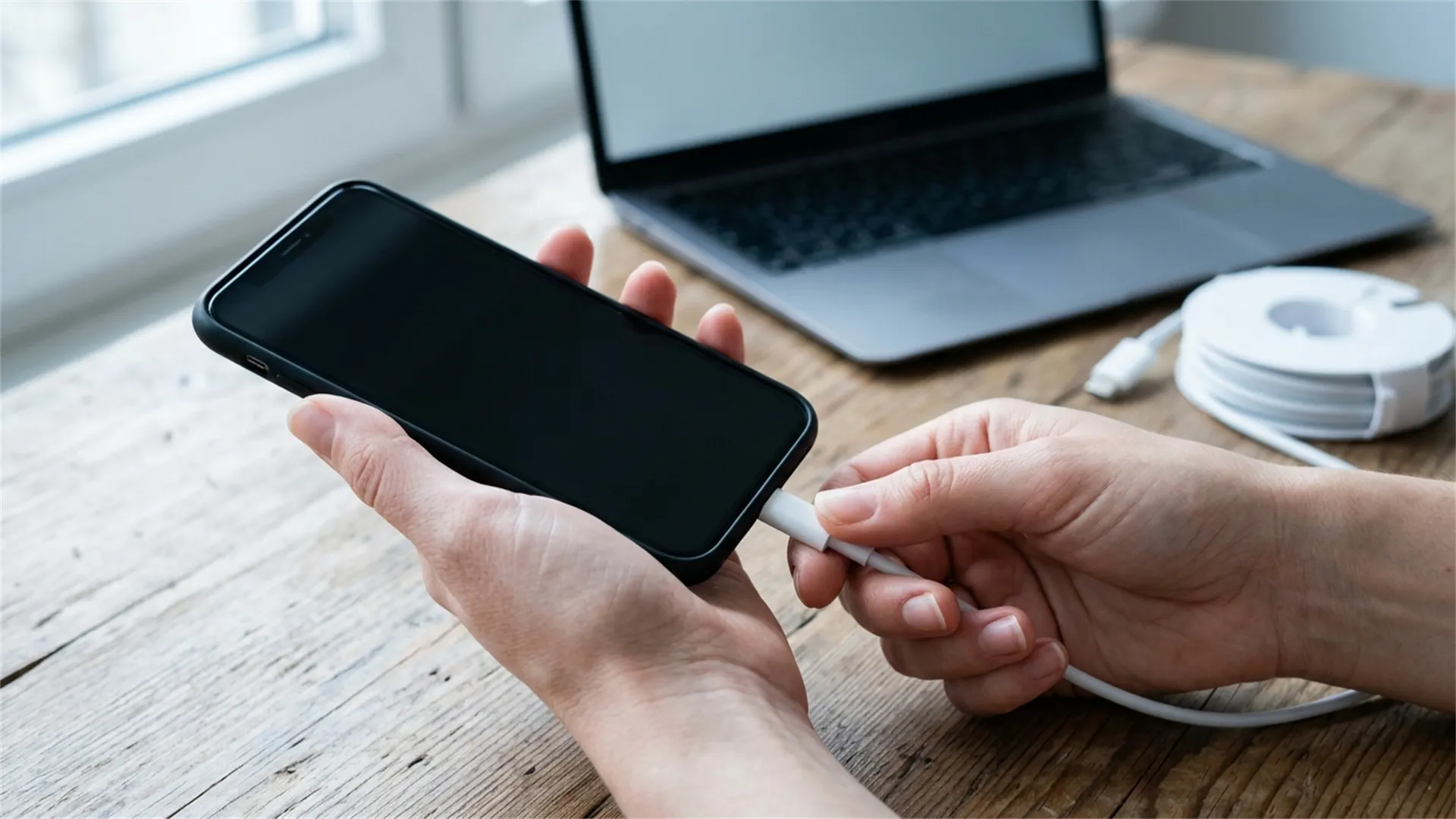
Cloud backup can fail, get cancelled for lack of space, or silently corrupt. An extra local copy is cheap — just cable and disk. On iPhone, use Finder on a Mac or the official Apple app on Windows, connect the cable, and choose “Back up now to this computer.” Check the option to encrypt the backup — without it, passwords and Health data are excluded.
On Android, connect the cable, accept file transfer mode on the phone’s prompt, and manually copy the DCIM (photos), Download, WhatsApp, and any other folders you use. For a fuller backup, most manufacturers (Samsung, Xiaomi, Motorola) ship their own desktop tool that also copies messages and settings.
Store that copy in a folder with the date in its name, like phone-backup-2026-08-30, so you don’t accidentally overwrite older backups.
Test whether the backup actually exists
A backup you never checked is a rumor. Open a browser on your computer and log into your Google account (at photos.google.com and contacts.google.com) or iCloud (at icloud.com). Confirm recent photos are there, your contacts show up, and the last sync date is today.
For WhatsApp, the non-destructive test is opening the backup panel inside the app and checking size and date. For iPhone, go to Settings, your name, iCloud, iCloud Backup, and look at the last backup date and size — if it is much smaller than you expected, something didn’t upload.
The definitive test, if you are switching phones anyway, is restoring on the new device before wiping the old one. Only reset the old phone once the new one is up and running with everything in place.
Common mistakes that break the backup
- Trusting automatic backup without ever opening the panel. Sync silently pauses because of low space, weak Wi-Fi, or a changed password, and no one tells you.
- Having two Google accounts and syncing to the wrong one. Very common for anyone who ever had a work account. Always confirm which account is set as the backup default.
- Assuming WhatsApp lives in the system backup. It doesn’t: you have to enable its own backup, in a separate cloud account.
- Forgetting the authenticator. Switching phones without transferring Google Authenticator or saving recovery codes locks you out of banking and email.
- Resetting the old phone before checking the new one. Always restore first, use the new device for a day, then wipe the old one.
- Not writing down the WhatsApp encryption password. An encrypted backup without the key is useless.
After the backup
Put a quarterly backup review on your calendar: open the panel, check the last copy date, look at cloud space. Five minutes every three months prevents most disasters.
If you’re selling or giving away the old device, only factory reset it after confirming the new device has photos, contacts, WhatsApp, and the authenticator working. Reset is irreversible, and once it is wiped no support tech can bring it back.
Frequently asked questions
Do I have to pay for cloud storage to back up my phone?
Not always. Both Google and Apple give you a free starter quota that usually covers contacts, messages, and settings. Photos and videos are what fill the quota fast, so many people combine cloud backup with a local copy on a computer or external drive.
Does the WhatsApp cloud backup include videos?
It depends on what you toggle inside WhatsApp itself. By default, chat history goes up, but videos may be excluded to save space. Open Settings, Chats, Backup, and confirm the include-videos option is on before running the backup.
If I lose my phone, can I recover my authenticator codes?
Only if you turned on cloud backup for the authenticator app or saved the recovery codes for each service. Without that, you have to prove your identity site by site, and some services lock the account for days. It is the most forgotten piece when changing phones.
How do I know my backup really worked?
The only reliable test is restoring on another device or on the same device after a reset. Since almost nobody does that, the next best check is opening the backup panel, looking at the last successful date and size, and confirming contacts and photos show up in your cloud account through a web browser.
Informational content. For risky situations or technical, legal or medical doubts, talk to a professional.